How to create a Verknüpfung erstellen Windows shortcut for maximum workflow efficiency in 2026
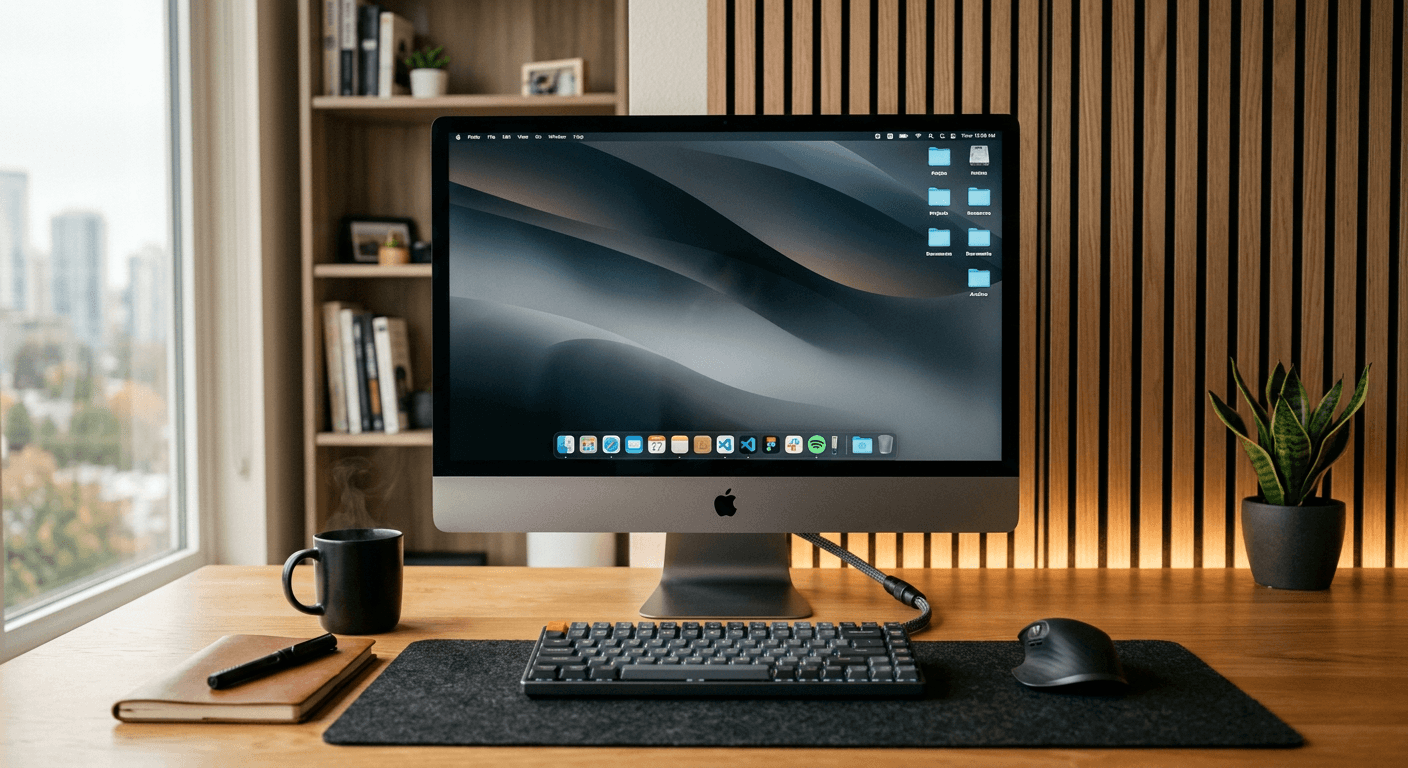
Mastering the ability to create desktop shortcuts and specialized links is a fundamental skill for maintaining productivity in a modern digital workspace. Whether you are managing complex project folders, accessing web-based applications, or organizing a digital business card, the process of streamlining your access points directly impacts your daily output. By centralizing your primary resources, you reduce cognitive load and minimize the time spent navigating nested directory structures.
Quick Summary {#quick-summary}
Creating desktop shortcuts allows for instant access to files, folders, and web resources, significantly reducing navigation time. By mastering these techniques, users can organize their workspace to prioritize essential tasks and ensure a seamless transition between local applications and cloud-based platforms.
- Improved navigation speed through direct desktop access.
- Reduced clutter by creating centralized hubs for frequently used URLs.
- Enhanced workflow efficiency by utilizing custom icon properties.
- Streamlined access to browser-based tools and digital interfaces.
Table of Contents {#table-of-contents}
- How to create a system shortcut on Windows
- How to create an internet shortcut
- Managing link entry types and properties
- Common Pitfalls & Troubleshooting
- FAQ
- Recommended Reads

How to create a system shortcut on Windows {#how-to-create-a-system-shortcut-on-windows}
To perform a verknüpfung erstellen Windows operation, you must first identify the target file or directory that requires frequent access. Right-click on your desktop background and select "New" followed by "Shortcut." A dialog box will appear, prompting you to enter the location of the item. You can manually type the file path or use the "Browse" button to navigate to the specific executable or document. Once selected, click "Next" and assign a clear, identifiable name to your link.
For more advanced users, the shortcut creation process can be streamlined by dragging a file or folder from File Explorer to the desktop while holding the "Alt" key. This creates a link rather than moving the file itself, ensuring that your original directory structure remains intact. Professionals often utilize these shortcuts to manage their digital assets, much like how one might organize resources on a link in bio platform to provide clean, direct paths to their most relevant work.
How to create an internet shortcut {#how-to-create-an-internet-shortcut}
When you need to perform an internet verknüpfung erstellen action, the method varies slightly depending on your browser. The most universal approach is to manually create a URL file. Right-click on an empty space on your desktop, select "New," then "Shortcut." In the box labeled "Type the location of the item," input the full URL including the "https://" prefix. This ensures the shortcut opens in your default browser immediately upon double-clicking.
Alternatively, you can drag and drop the padlock icon located to the left of the URL bar in your browser directly onto your desktop. This automatically generates a link with the website's favicon. For those who frequently switch between different web-based productivity tools, organizing these shortcuts into a dedicated folder on the taskbar can function as a powerful, secondary navigation menu, saving significant time during high-intensity work sessions.
Managing link entry types and properties {#managing-link-entry-types-and-properties}
Understanding the mechanics of an e link entry is vital for customizing how your desktop environment behaves. By right-clicking an existing shortcut and selecting "Properties," you can modify the "Target" field to add command-line arguments. For example, adding specific flags to a browser shortcut can force it to open in incognito mode or start on a specific landing page, which is useful for testing digital marketing campaigns or verifying user flow on a professional landing page.
Furthermore, the "Shortcut key" field in the Properties window allows you to assign a global keyboard combination to trigger the link. This is an underutilized method for increasing efficiency, as it allows you to launch your most critical software without touching the mouse. Maintaining a clean approach to how you handle each e-link entry ensures that your system remains responsive and organized, even as your list of essential tools grows over time.
Common Pitfalls & Troubleshooting {#common-pitfalls-&-troubleshooting}
One of the most frequent issues users face is the "broken link" scenario, which occurs when the target file is moved or deleted. To troubleshoot this, right-click the shortcut, select Properties, and check the "Start in" and "Target" paths. If the paths have changed, simply update them to point to the new location. Avoid creating shortcuts that rely on temporary files, as these will inevitably expire or break when the system clears cache data.
Another common mistake involves naming conflicts or using generic icons that make it difficult to identify the target at a glance. Use the "Change Icon" button within the Shortcut Properties menu to assign unique, visually distinct icons to your links. This visual distinction helps reduce the "search time" for your eyes, keeping your focus on the actual task at hand rather than hunting through a sea of identical file icons.
Pro Tip: If you work across multiple devices, consider using a cloud-synced folder for your essential shortcuts. This allows you to maintain a consistent workflow environment regardless of the machine you are using, provided the directory structures remain identical.
FAQ {#faq}
1. Can I create a keyboard shortcut for a website link? Yes. Once you have created the internet shortcut on your desktop, right-click it, go to Properties, and select the "Shortcut key" field. Press your desired key combination, and your system will register it to trigger that specific URL.
2. Why does my shortcut icon look like a generic white page? This happens when the system cannot retrieve the icon data from the target file. You can manually fix this by right-clicking the shortcut, selecting Properties, choosing "Change Icon," and browsing to the executable file or an icon library to select a custom image.
3. Is it better to pin apps to the taskbar or use desktop shortcuts? It depends on usage frequency. Taskbar pins are best for "always-on" applications, while desktop shortcuts are ideal for secondary resources or specific project folders that you access periodically.
4. Will moving the source file break the shortcut? Yes, unless you have used a specific type of shell link that the operating system can automatically resolve. It is best practice to create the shortcut after the source file has been placed in its permanent directory.